Make a Useful Backup Plan for Personal Files
Choose which files deserve another copy, where to keep it, and how to check that you can restore what matters.
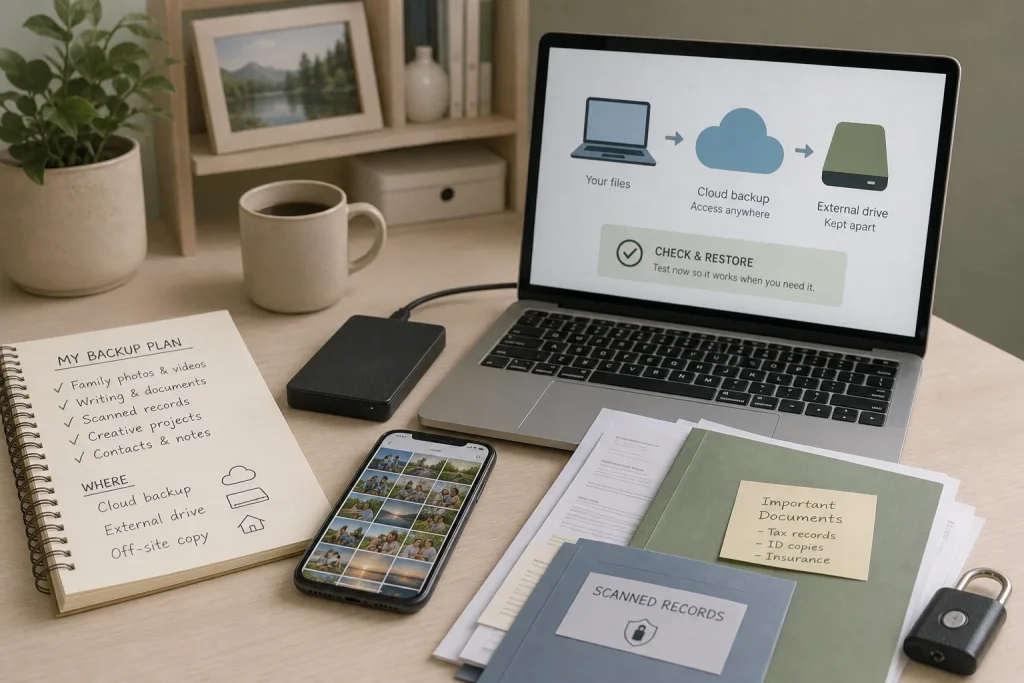
Choose which files deserve another copy, where to keep it, and how to check that you can restore what matters.
Guides · 8 min read
A laptop slips from a kitchen counter, a phone disappears on a train, or a drive stops opening just before a family trip. In each case, the worry is not only about replacing a device; it is about recovering the photos, documents, and personal records stored on it. A useful backup plan gives those files another home and lets you practise bringing them back.
Choose the files that deserve another copy
Start with material that would be difficult or impossible to replace: family photos and videos, personal writing, housing or tax documents, creative projects, and records you need for everyday life. A musician might prioritise project files; someone caring for a relative might include scanned paperwork and contact notes.
Then check where those files live. Look in Documents, Desktop, Pictures, and Downloads, along with photo libraries and creative apps. On a phone, consider whether messages or voice recordings matter to you. Don’t assume a file is protected just because it appears in an app. Some apps keep files in their own accounts or require a separate export.
Make a short inventory that names the material and its location, such as “family photos—phone and laptop; writing—Documents; scanned records—secure folder.” You do not need to list every file, but you should be able to tell whether a particular folder is included in your plan.
Pick copies that do not share every risk
For many households, an automatic cloud backup or sync service paired with an external drive is a manageable starting point. Cloud access can help when a device is lost or damaged. A drive kept apart from the computer can help if an account becomes inaccessible or a cloud copy is affected. Neither option is a complete plan on its own.
Cloud sync and backup can behave differently. Sync keeps selected folders aligned across devices, so an unwanted edit or deletion may also spread. Before relying on a service, check its current help pages or settings for file history, deleted-file recovery, earlier versions, and the length of any retention period. Confirm which folders and devices are covered, and whether recovery options apply to synced files, backed-up files, or both. These details vary by provider, account type, and device.
An external USB drive offers a local copy. Use the computer’s built-in backup tool or a reputable backup application, select the folders you identified, and follow its prompts. When the copy finishes, eject the drive properly and store it somewhere dry and secure, away from the computer. If it remains connected, it may be exposed to the same accident, malware, or mistaken deletion as the original.
A network-attached storage device can make files available to several household devices, but it remains in the home. It may not help if the home itself is affected by theft, fire, or a serious network problem. If you choose a cloud provider or backup app, check its account recovery process, privacy settings, supported devices, and instructions for downloading a complete copy.
Protect the copies and the way back into them
A backup is more useful when it is separate from the failure that affects the original. Two copies on one laptop do little to help if the laptop is stolen. A drive beside the computer is still exposed to a household accident. Keep at least one copy apart from the device it protects, and consider another location or service for especially important files.
Backups can contain intimate details of your life. Use a strong, unique password for the account that holds them, and turn on multifactor authentication if available. Keep recovery details somewhere you can reach without the backed-up device. For an external drive that could be lost or accessed by someone else, consider encryption. Store its recovery key separately; an encrypted copy is of little use if no one can unlock it.
Check who can see shared folders and which devices are signed in. A household account may give other users access to personal documents, while a shared photo folder may reveal images you meant to keep private. Choose permissions and folder locations deliberately.
Make the routine fit everyday life
Automate copying where possible, then set a calendar reminder to check that the account is signed in and the external drive has completed a backup. Keep the reminder simple enough that you will follow it. A backup plan that depends on remembering an occasional manual copy is easy to neglect.
Revisit the setup when you replace a phone or computer, move to another photo service, or reorganise folders. Before wiping or handing over an old device, confirm that its important files are backed up and that you can open them from the new location. When you stop using an app, export material you want to keep in a suitable common format, such as PDF for a finished document or JPEG for an image.
Keep a brief instruction note in a secure place. It can name the folders included, the service or drive holding the copies, and the basic restore route. Don’t put passwords or encryption keys in an ordinary unprotected note. Use a trusted password manager or another secure method, and make sure a family member can find the instructions if you want them to help.
Check that the recovery route works
A message saying that a backup ran does not tell you whether every important file is present or whether you can restore it. Choose a harmless document or photo and restore a copy to a different folder. Open it and check that it looks right. This gives you a chance to learn the recovery screens before you need them in a hurry.
- Cloud folders: Check whether the folders in your inventory appear in the service. If they do, try downloading one file; if they do not, add the missing folders or choose another backup method.
- Recent edits: Check whether the service shows earlier versions and how long they remain available. If the available history fits your needs, record where to restore from; if it does not, add a separate versioned backup.
- Deleted files: Check whether a recycle bin or deleted-file recovery option exists and what its retention rules are. If the rules suit your needs, note the restore route; if not, keep another copy that is not tied to the same sync account.
- External drive: Check that the drive appears in the computer and contains the folders you selected. If it does, restore a sample file; if it does not, reconnect it, rerun the backup, or replace the failing drive.
- Account recovery: Check that your recovery email, phone number, and any security key or recovery code are current and accessible without the backed-up device. If they are, keep their location in your instructions; if not, update or replace the recovery method before relying on the account.
- Encryption key: Check that you can reach the key for an encrypted drive without relying on that drive. If you can, practise unlocking a sample copy; if you cannot, store the key securely before the next backup.
For cloud storage, try downloading a file through the web interface or another device. For a computer backup, use its restore option to recover a sample without replacing the current version. If the sample is missing, check whether its folder was selected, whether the copy completed, and whether the service is showing an older version.
A hypothetical household chooses what to protect
Imagine a household with a phone photo library, a laptop Documents folder containing housing records and personal writing, and a USB drive used only for file transfers. The phone’s photo app is connected to a cloud account, but the laptop folder is not backed up. These are invented details for the example, not a claim about a real household.
First, someone opens the cloud service on the laptop and checks whether recent phone photos appear. They do, so the household treats that service as the routine photo copy. Next, they check the provider’s current settings for deleted-file recovery and earlier versions. The service’s displayed retention period is shorter than they want for the laptop writing, so they decide not to rely on it as the only way to recover older edits.
They then enable the laptop’s backup tool for Documents and Pictures, and use its prompts to copy those folders to the USB drive. After the copy finishes, they eject and store the drive away from the laptop. They save the account recovery details and the drive’s encryption key in a password manager, accessible without the laptop.
Finally, they restore a photo and a writing file to a separate folder and open both. The resulting plan is a cloud copy for convenient access, a separate local copy of the laptop folders, and a known route for retrieving earlier work. The tradeoff is that the drive needs reconnecting for updates, and the household must review its account and backup settings when devices or folders change.
Recheck the plan when something changes
Review your setup after buying a device, changing cloud accounts, reorganising folders, or beginning a project you care about. Confirm that the new location is included, keep the old copy until the transfer is verified, and restore a sample file again if the recovery process has changed.
One useful habit is to keep the provider’s recovery and retention details alongside your backup instructions, then check those details when the service or account changes. The plan stays useful when you know not just where the copies live, but also what you can recover and how long the service keeps it.
What to Check Before Buying a Refurbished Laptop
Compare refurbished laptops by condition, battery, return terms, software support and the seller’s description, then choose…
Build a Digital Filing System You Can Keep Using
Create a compact folder structure, choose file names that make sense later, and set a simple…