How to Choose a Home Wi-Fi Router for Your Space
Before replacing your router, map where the connection struggles, check your internet plan and devices, and weigh placement, compatibility and upkeep.
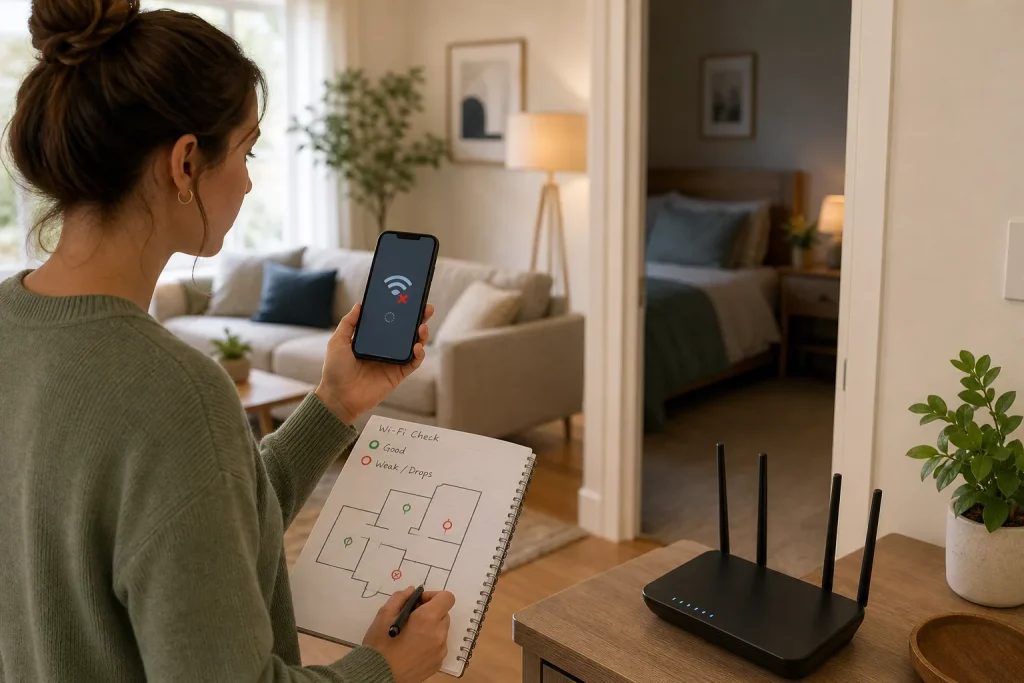
Before replacing your router, map where the connection struggles, check your internet plan and devices, and weigh placement, compatibility and upkeep.
Home Life · 7 min read
A video call drops when you walk into the back bedroom, though the television beside the router streams without trouble. Before shopping, note where the connection falters and where it works. That simple distinction can help you decide whether you need a different router, a better location or help with the internet service itself.
Map the rooms where Wi-Fi matters
Walk through the rooms where people use Wi-Fi during ordinary routines. Note where a call drops, a page stalls or a smart speaker responds inconsistently, as well as where everything works. A problem limited to one room points toward coverage; trouble across the home, including near the router, may have another cause.
Consider the route between the router and the devices, not just the home’s floor area. Dense walls, floors, metal appliances and ductwork can weaken a signal. A closed cabinet or a spot behind furniture may also obstruct it. These factors vary from home to home, so treat them as clues rather than a prediction of exactly where coverage will fail.
If only one phone or laptop struggles in a spot where other devices work, check that device before replacing the router. Confirm Wi-Fi is on, restart it and check for available software updates. If possible, see whether it connects normally to another network.
Try a better location before buying
When practical, place the router in an open, central spot with space around it. A shelf in a main living area may work better than a floor-level corner, a closed media cabinet or a position behind a sofa. Keep it away from nearby electronics that may cause interference, such as a microwave or a dense cluster of wireless equipment. The effect depends on the placement and surroundings, so compare locations rather than assuming any one source is responsible.
The modem or incoming internet line may limit your options. If you can connect the modem to the router with a longer Ethernet cable, you may be able to move the router to a more useful location. This helps only when the new position gives the Wi-Fi a clearer or more central path to the rooms you use. Route the cable along a wall or another protected path, not across a walkway where someone could trip.
After moving the router, repeat a few normal tasks in the rooms that had trouble. If they work better, you may be able to keep your current equipment. If not, note whether the remaining weak spots are far away, behind obstacles or on another floor; that information will help narrow your options.
Match the router to your plan and devices
A router cannot deliver internet faster than the connection entering your home. Check your provider’s plan and the modem’s capabilities before paying extra for features aimed at a service you do not have. Look for the model label on the modem and router, then consult the provider’s support information if you are unsure what the equipment supports.
Think about the devices household members use: phones, older laptops, streaming boxes, game consoles, printers and smart-home equipment. Check the router’s compatibility information against those devices. Newer Wi-Fi standards may offer useful features, but older devices connect according to their own capabilities; a new router does not change what an older device supports.
Count the devices you might connect with Ethernet. A desktop computer, television or game console near the router can use a wired connection instead of Wi-Fi. Check the router’s available Ethernet ports. If you need more, a separate network switch may be an option, provided it suits your setup.
Choose between one router, mesh and an access point
A single router is the simplest fit when it reaches the rooms and devices you rely on. A mesh system uses multiple units to extend Wi-Fi across a larger or awkwardly shaped home. It can help where there is no convenient cable route, but each unit still needs power and a suitable location.
An access point connected to the main router by Ethernet can provide Wi-Fi in a distant room without relying on a wireless link between the two. If running cable is impractical, mesh may be easier to set up. Check whether a mesh kit supports Ethernet backhaul or uses a wireless connection between its units, and consider where those units could sit.
Before buying a multi-unit system, check how setup works and whether it is compatible with your modem or provider gateway. Some providers supply a combined modem-router. Putting it into bridge mode may be possible, but settings vary by device and provider. Ask the provider for help if you are unsure; changing settings without guidance could interrupt the connection.
Check support, security and the features you need
Look for current security options, a clear way to change the network name and password, and a straightforward update process. A guest network can be useful for visitors or household devices you prefer to keep separate. Check whether firmware updates can install automatically and how the manufacturer describes its software support.
If setup depends on a phone app, find out whether the app requires an account and decide whether you are comfortable with that. Parental controls, traffic prioritization and smart-home management may suit particular households, but check whether they require a subscription or account. Choose features for a real need, not simply because they appear on a product page.
Use observations to guide the purchase
- Observation: The problem appears in one room, while devices work well near the router. If that pattern remains after you try a more open location, then compare mesh or an access point; otherwise keep the current router if placement resolves it.
- Observation: One device struggles in a room where other devices work. If its Wi-Fi settings or software are out of date, then correct those first; otherwise check the device’s compatibility and support before buying a router.
- Observation: Devices disconnect even when used near the router. If the problem affects the whole home, then contact the internet provider before replacing equipment; otherwise keep tracing the affected room or device.
- Observation: The router sits in a cabinet or behind furniture. If you can move it to an open central location safely, then try that and repeat normal tasks; otherwise compare other placements that do not obstruct walkways.
- Observation: A distant room has a practical route for Ethernet. If you can run cable safely and connect an access point, then compare that option with mesh; otherwise look at mesh placement and its wireless connection requirements.
- Observation: Several nearby devices need wired connections, but the router lacks enough ports. If a suitable network switch fits your setup, then consider using one; otherwise prioritize the devices that need Ethernet and check other connection options.
A worked hypothetical choice for an upstairs bedroom
Imagine a two-floor home where the living-room television works reliably but a laptop loses connection in an upstairs back bedroom. The router is inside a closed cabinet near the front door. The household has no convenient cable route upstairs, a limited budget and an older laptop. These are hypothetical details, not a claim about what will happen in every home.
First, the household moves the existing router from the cabinet to an open shelf closer to the center of the ground floor, using a longer Ethernet cable from the modem. They keep the cable out of the walkway. Next, they check the laptop’s Wi-Fi settings and available software updates. Then they repeat a video call in the bedroom and compare it with the connection near the router.
If the call works reliably after those changes, the household keeps the existing router and spends nothing on a replacement. If it still drops upstairs while nearby devices work, they compare a mesh unit that can sit on the landing with an access point that would require a cable route. Since the imagined home has no convenient route for Ethernet, mesh is the more practical option to investigate; the tradeoff is added equipment and setup, not a promise that coverage will improve. If devices also disconnect beside the router, they contact the provider instead of buying either option.
Keep the router easy to maintain
During setup, use a strong, unique administrator password and enable automatic updates if available. Keep that password separate from the Wi-Fi password, and save the model name, admin address and support page somewhere household members can find them securely.
Leave the vents clear and avoid placing the router on a heat-producing device. If it becomes unusually warm or disconnects often, check its position and ventilation. A restart may clear a temporary problem, but repeated restarts are a reason to look more closely at placement, software or the internet service.
When replacing equipment, remove the old router from the network and reset it according to its manual before passing it on or recycling it. If it belongs to your provider, ask about return instructions. When the whole home has trouble even beside the router, contact the provider before shopping; the issue may be with the service rather than Wi-Fi coverage.
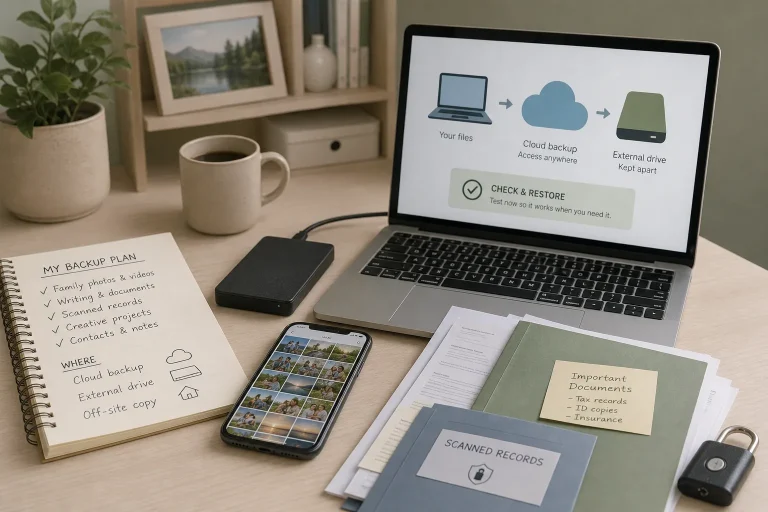
Make a Useful Backup Plan for Personal Files
Choose which files deserve another copy, where to keep it, and how to check that you…
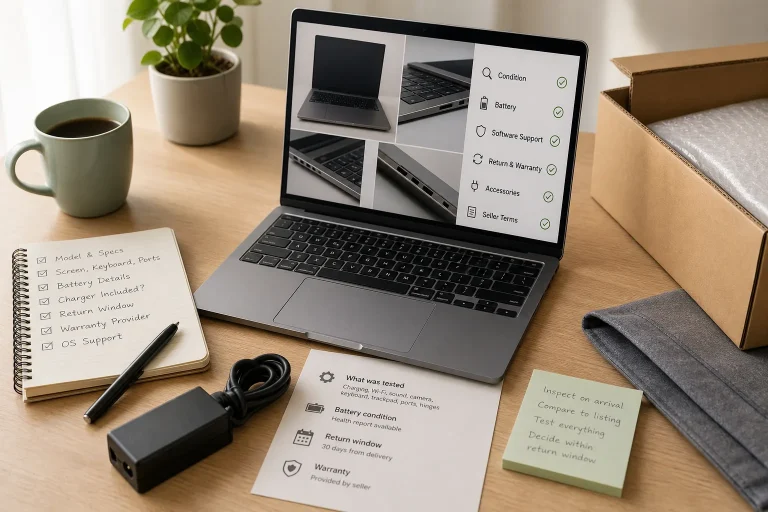
What to Check Before Buying a Refurbished Laptop
Compare refurbished laptops by condition, battery, return terms, software support and the seller’s description, then choose…