Build a Digital Filing System You Can Keep Using
Create a compact folder structure, choose file names that make sense later, and set a simple routine for keeping work documents easy to find.
Create a compact folder structure, choose file names that make sense later, and set a simple routine for keeping work documents easy to find.
Work · 8 min read
A client sends a revised proposal while you are finishing a meeting note, and both files land in Downloads. A week later, you search for “final” and several near-identical results appear. A simple filing system can prevent that scramble from becoming a daily habit. It does not need many folders or elaborate rules; it needs a structure you can remember when you are busy.
Start with the files you handle often, then build a modest system around how you look for them. The goal is to make the next file easy to put away and the old one easy to recognize.
Choose a home for active work files
Before making folders, choose the boundary. If your employer or client requires a particular storage location or naming convention, follow that first. Otherwise, pick one main home for active work files, such as a designated work folder in your computer’s Documents area or an approved cloud drive. Avoid scattering the same working documents between Downloads, the desktop, email attachments and several cloud services.
Then identify the main kinds of work you need to retrieve. These might be ongoing projects, recurring operations, reference material and completed work. Keep the list short. A folder for every file type—documents, spreadsheets, images—can be awkward if you usually search by project or purpose instead.
Think about the question you ask when looking for something. “Which project was this for?” suggests project-based folders. “What kind of recurring task?” may suggest folders such as Reports or Administration. Choose the organizing principle that matches your own memory, and use it consistently.
Build only the folders you can explain
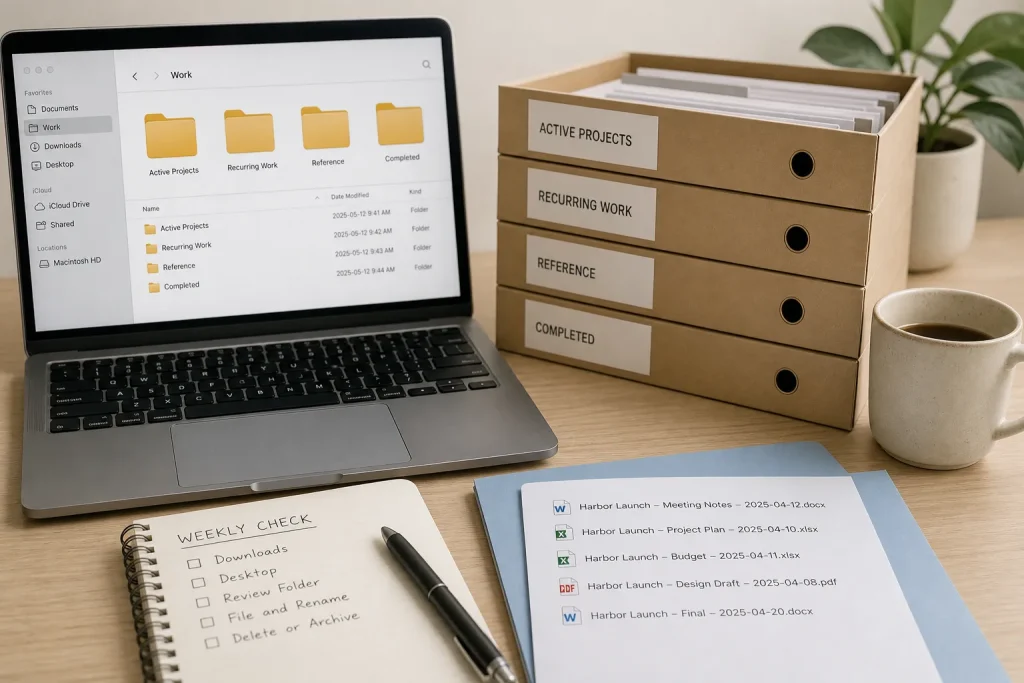
Make a top-level folder with a plain name such as Work. Inside it, add only categories you have a clear reason to use. For example:
- Active Projects
- Recurring Work
- Reference
- Completed
Within Active Projects, create a folder for each current project. Under a project, add repeatable subfolders only if they distinguish real kinds of material, such as Drafts, Source Files and Deliverables. If a project has only a handful of documents, keep them together rather than creating empty subfolders in advance.
Use folder names that are clear without explanation. “Client Intake” is more useful than “Misc,” and “Planning” tells you more than “New Folder.” Avoid nesting folders so deeply that you must click through a chain of labels to reach an everyday document. When two folders seem equally plausible, decide which one will be the official home and add a shortcut in the other location only if your software supports it reliably.
Name files for recognition, not just recency
A good file name helps you recognize the subject and distinguish one version or stage from another. Start with the most identifying words, then add a date or status when it helps. A simple pattern might be: Project – Document type – Date or status.
For example, “Harbor Launch – Meeting Notes – 2025-04-12” is easier to scan than “Notes final new.” Choose one date style and stick with it. A year-month-day pattern often sorts chronologically in file lists, but sorting behavior can depend on the application, settings and naming consistency. Check the folder view you use; if dates do not appear in the expected order, sort by the date column or adjust the naming pattern.
Use the date that matters for the document, such as the meeting date, rather than the day you happened to download it. Keep names readable, using ordinary words and spaces or a consistent separator such as a hyphen. Avoid relying on labels like “final,” “latest” or “final-final,” which become confusing when a document changes again.
If your software provides version history, use it. Otherwise, distinguish a draft from an approved deliverable with a clear status, and replace or archive older versions deliberately rather than leaving several ambiguous copies side by side. Before renaming files in a shared workplace, check whether colleagues, automated processes or links depend on the existing name. For team documents, agree on the pattern with the people who use them.
Move old files in manageable groups
Do not try to sort every old file in one sitting. Begin with the files you use now: current project documents, recurring templates and useful reference material. Move them into the new structure, rename only what would otherwise be hard to identify, and open a few files from their new locations to confirm they still work as expected.
Next, review Downloads and the desktop. For each item, choose among three actions: file it in the proper folder, delete it if it is no longer needed and you are allowed to remove it, or leave it temporarily in a clearly named review folder. Do not use that review folder as a permanent hiding place. Set a calendar reminder to decide what to do with its contents.
For older material, sort only when you need it or have time for a focused pass. If a document’s purpose is unclear, do not guess when it may be important to your job or organization. Ask the relevant colleague or consult your workplace’s retention rules. Keep confidential work files in approved locations and follow your organization’s instructions for handling or deleting them.
Use a short routine for incoming documents
When you create or receive a document, decide where it belongs before you close the application. Save it in the project or work category that matches your structure. Give it a descriptive name while the context is fresh. If you download an attachment, move it out of Downloads once you know whether it belongs in your filing system.
For collaborative documents, make the shared location the source of truth. Avoid keeping a separate desktop copy that can drift away from the team version. If you need a temporary copy for a particular task, label it as temporary and remove it when that task is done, in line with workplace policy.
Once a week, take a brief look at the places where stray files collect. Use these checks to decide what to do:
- Downloads contains a file you recognize and still need: if you can identify its project or purpose, move it to that folder and rename it if the current name is unclear; otherwise, leave it in a review folder and ask the relevant colleague.
- The desktop contains a duplicate of a shared document: if the shared copy is current and your workplace permits removing the local duplicate, delete it; otherwise, confirm which copy is authoritative before changing either one.
- A file name says “final” but its approval status is uncertain: if you can verify approval from the shared document history or responsible colleague, rename it with the agreed status; otherwise, keep it unchanged until its status is clear.
- A folder has no files and no known purpose: if no current task or team rule depends on it, remove it; otherwise, keep it and ask who uses it before changing the structure.
- A folder contains several kinds of material that you often search separately: if the distinction is useful in your regular work, split it into clearly named subfolders; otherwise, keep the files together to avoid extra upkeep.
- An old document may be subject to workplace retention rules: if the applicable rule is clear, follow it; otherwise, do not delete the file and ask the appropriate colleague or consult the organization’s guidance.
A small, repeatable routine is easier to maintain than a major cleanup that you keep postponing.
Work through one folder with clear decisions
Here is a hypothetical example with invented details. Suppose a shared work drive contains a project folder named “Harbor Launch,” and a teammate has saved a meeting note, a client brief, two proposal drafts and an approved slide deck in Downloads and on the desktop. The workplace permits project folders on that drive, and the team uses it for current documents.
First, create Work / Active Projects / Harbor Launch. The note and brief are different working documents, but there are only two of them, so keep them in the project folder rather than adding extra subfolders. Rename the note “Harbor Launch – Meeting Notes – 2025-04-12” and the brief “Harbor Launch – Client Brief.” Move the approved slide deck into a new Deliverables subfolder and name it “Harbor Launch – Slides – Approved.” Before touching the two proposal drafts, check the shared history and ask the project owner how drafts should be retained. If the answer is unclear, leave them in place until the team decides.
The resulting arrangement makes the approved deck distinguishable from the drafts, while the unresolved files stay untouched rather than being mistaken for obsolete copies. The tradeoff is a little time spent confirming team practice; in return, the folder avoids unnecessary subfolders and preserves uncertainty where a deletion decision would be risky.
Change the system when your work changes
A filing system should change when your work changes. If you repeatedly save the same kind of document in different places, a category or naming rule may be unclear. If a folder stays empty, remove it when you have confirmed nobody relies on it. If a folder grows crowded, split it by a distinction you genuinely use, such as project stage or year.
Make one change at a time, then use it for new files before reorganizing everything already stored. That keeps the system recognizable while you refine it. A useful structure is one you can apply quickly and explain to a colleague without opening a diagram.
When you are unsure whether a file belongs in a personal work folder, a shared drive or an archive, check the team’s rules before moving or deleting it. A clear question to the right colleague can prevent a tidy-looking folder from becoming a source of confusion later.
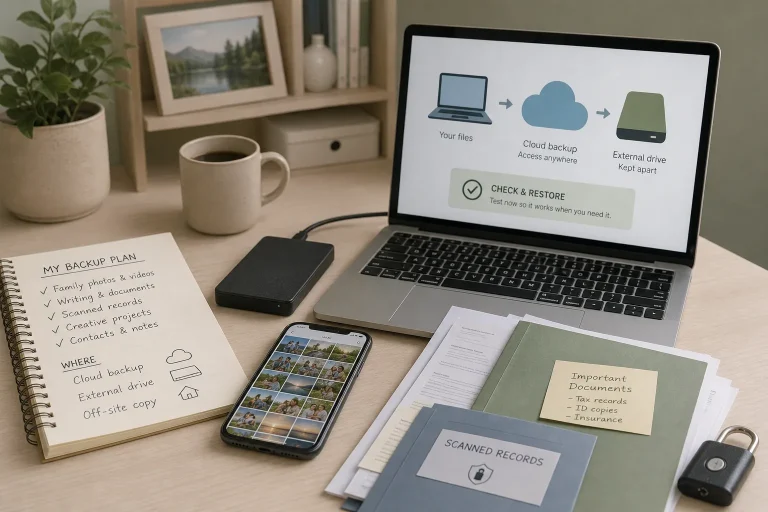
Make a Useful Backup Plan for Personal Files
Choose which files deserve another copy, where to keep it, and how to check that you…
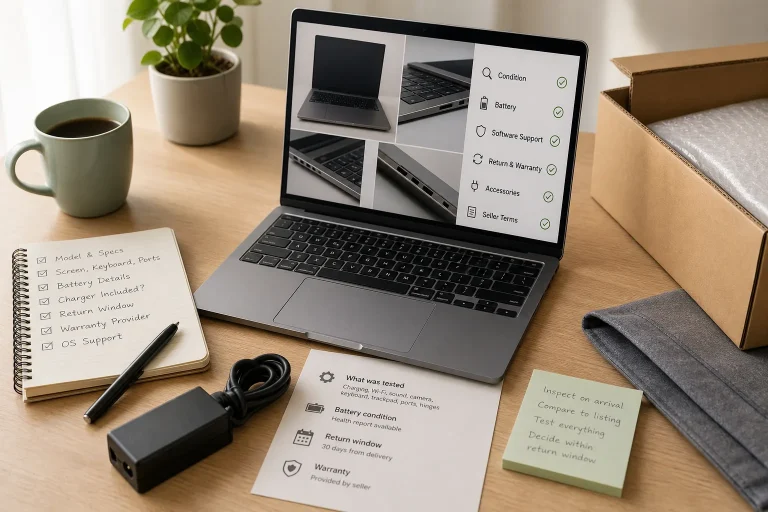
What to Check Before Buying a Refurbished Laptop
Compare refurbished laptops by condition, battery, return terms, software support and the seller’s description, then choose…