How to Move Your Passwords Into a Manager Without Losing Access
Choose a password manager by checking device support, recovery options and export tools, then move your most important logins in a calm, practical order.
Choose a password manager by checking device support, recovery options and export tools, then move your most important logins in a calm, practical order.
Privacy · 6 min read
On a rainy Sunday, a laptop browser offers to fill a shopping password that its owner also uses for email. She closes the prompt and decides to move her logins into a password manager—but first she needs to know which tool fits her devices and how she would get back in if her phone went missing.
Choose a manager that fits the devices you actually use
Start with a short list of essentials: the laptop and phone you use, the browsers you rely on, and whether you need shared access to any household accounts. Check the manager’s official compatibility information for those specific devices. Confirm that its browser extension and mobile app are published by the provider you intended to choose.
Then read the provider’s current documentation on vault encryption, account recovery and multi-factor sign-in. The details differ across services and can change. In particular, find out whether forgetting the master password means losing access to the vault, whether recovery depends on a recovery key, an enrolled device or another person, and what happens if your second sign-in factor is unavailable. Do not infer the answer from a general description of password managers.
If you may switch services later, check whether the manager supports exporting your entries and what protection the export file has. An export can contain readable passwords, depending on the service and format. Treat it as sensitive: use the provider’s documented process, keep the file somewhere private while transferring it, and remove temporary copies when the move is complete.
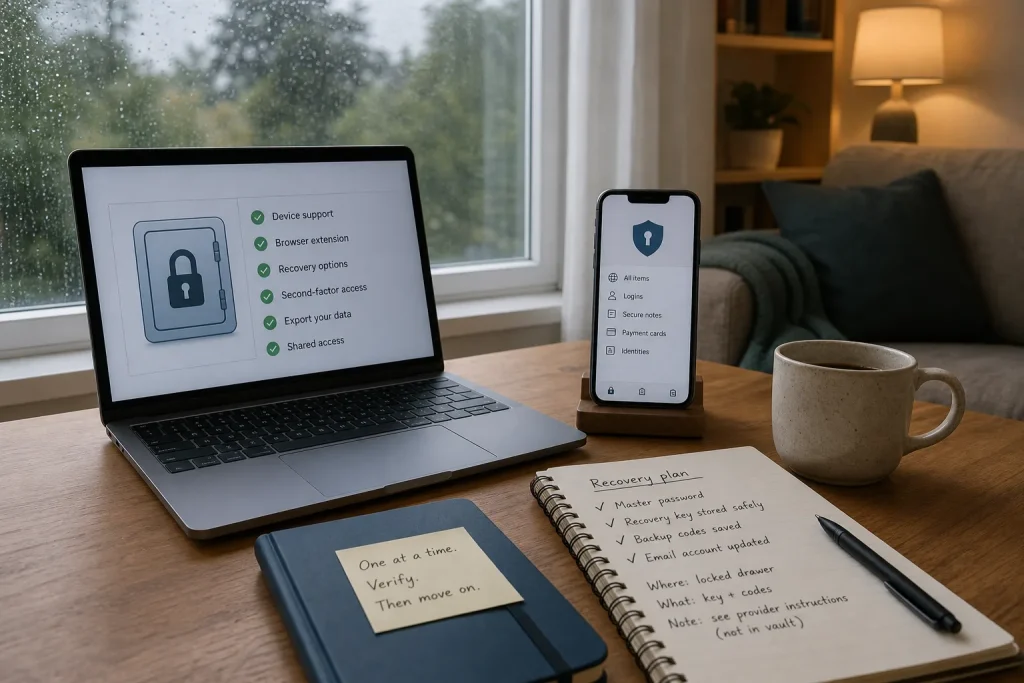
- Device support: Check that the official app supports each device you use; if one is missing, then choose a compatible manager or decide whether you can use another supported device.
- Browser support: Check that the official extension is available for your everyday browser; if it is not, then confirm whether the app offers a workable alternative or choose another manager.
- Recovery explanation: Check the provider’s current instructions for a forgotten master password; if the process is unclear, then contact its support or compare another service before storing important logins.
- Second-factor access: Check which multi-factor options are supported and what happens if your phone or key is unavailable; if there is no recovery route you can use, then select a supported factor you can keep accessible or reconsider the service.
- Export process: Check whether you can export entries and how the resulting file is protected; if export is unavailable or unclear, then decide whether that limitation is acceptable before committing your logins.
- Shared access: Check who can view, change or revoke access to any shared vault; if the arrangement exposes personal entries or does not suit your household, then keep those accounts separate or choose a different sharing method.
Set up recovery before moving important logins
Create a master password you do not use anywhere else, and follow the provider’s instructions for protecting it. If the service supplies a recovery key or codes, follow its directions for storing them outside the vault they are meant to help recover. A code saved only in an inaccessible vault cannot help you regain access.
Check the recovery details for your email account as well. Many services use email to help reset other accounts, so an outdated phone number or address can complicate recovery. Update details you no longer control, and store any backup codes according to that service’s instructions. For a shared device, use separate user profiles where available and sign out when you are finished.
Keep the plan proportional. You do not need to write passwords into an ordinary document to make recovery possible. A short note can point to the provider’s official recovery instructions and tell you where separately stored recovery material is kept, without revealing the material itself.
Move accounts in an order that limits confusion
Begin with the email account you use to recover other logins. Open the service’s official app or type its known web address rather than following an unexpected link. Change the password to a unique one generated by the manager, save it there, then sign in again to confirm the new entry works.
Next, consider accounts that could expose private information or help someone reach other accounts: for example, mobile-provider, financial, cloud-storage and shopping accounts. Choose an order that makes sense for your situation. Change one login at a time, using the service’s official app or site, and verify the saved entry before moving on. A seldom-used forum can wait for a later session.
If a site rejects a generated password, check its stated rules and adjust the manager’s character options. Do not reuse an old password to get past the problem. If you are working on a shared computer, avoid saving access in a profile other people use and sign out when finished.
Work through a hypothetical first session
Consider this invented situation: a person uses one laptop, one phone and the same old password for email, shopping and a forum. The person has no second phone number and wants a route back into the vault if the phone is lost. These are hypothetical starting details, not a claim about a real user.
- They list the laptop, phone and browser, then check the official compatibility pages for two candidate managers. One supports both devices and the browser; the other does not support the phone. They set the second candidate aside.
- They read the first provider’s current recovery documentation. It says recovery requires a method the person has not set up, so they do not import important logins yet. They compare another compatible manager and choose it only after confirming, in its own documentation, a recovery route they can use.
- They install the official app and browser extension, create a unique master password, and configure a supported second sign-in factor. They store any recovery material as the provider directs, separately from the vault.
- They add the email login, change its reused password to a generated unique one, save it, and sign in again. The observable result is that the new login works from the laptop and phone.
- They repeat the process for the mobile-provider and shopping accounts, then leave the forum for another session. The tradeoff is a shorter first session and a few unchanged logins until later, rather than rushing through every account without checking each change.
The resulting decision is clear: this manager fits the person’s listed devices and documented recovery needs, while the first candidate does not. If the provider’s recovery instructions later change, or the person’s devices change, they should reassess rather than assuming the original choice still fits.
Keep the vault current without turning it into a project
Save new logins as you create them. When a service offers a passkey, check whether your manager supports it on the devices you use and follow the service’s setup and recovery instructions; support can vary. Do not assume a passkey will behave exactly like a saved password.
When moving to another manager, use the providers’ official export and import instructions. Protect any exported file while it exists, check that the imported entries are present, then remove temporary copies. Before deleting an old entry, confirm you no longer need it to close an account or retrieve a record.
A password manager is useful when you can reach it, understand its recovery path and keep it current. Before committing your most important accounts, take a moment to verify those three conditions against the provider’s own instructions; that small check can prevent a hurried migration from becoming a lockout problem.
Make a Useful Backup Plan for Personal Files
Choose which files deserve another copy, where to keep it, and how to check that you…
What to Check Before Buying a Refurbished Laptop
Compare refurbished laptops by condition, battery, return terms, software support and the seller’s description, then choose…